


Digitalisation is no longer a project for “later”: it is the operational standard in banking, notary offices, retail and the public sector. In this paperless transition, the signature capture tablet solves a critical challenge: transforming the customer’s handwritten signature into reliable, traceable data with legal validity.
In this article, we explain what a digital signature tablet is, how signature capture works, including biometric data such as pressure and speed, and what you should consider before choosing a device: screen size, pressure sensitivity levels, compatibility with document management software, durability for intensive use, and value for money. We’ll finish with a practical comparison, focusing on Wacom signature tablets, the industry benchmark.
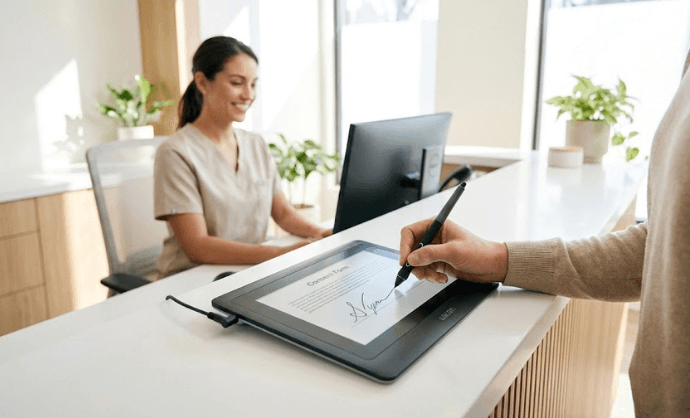
What is a signature tablet?
A digital signature tablet is a specialised device designed to capture handwritten signatures directly on a screen using an active stylus and record them together with stroke metadata. Its purpose is not entertainment or web browsing, but to support reception desks and customer-facing workflows where contracts, consent forms or other documents are signed.
Key differences when signing on a tablet:
- Finger on the screen: generates only an image (raster). Fast, but less accurate and with lower evidential value depending on the context.
- Generic stylus on an iPad or Android tablet: improves the user experience, but typically captures only an image without pressure or timing metrics and relies entirely on the app being used.
- Professional digital signature tablet: captures both the signature stroke and signature biometrics (X-Y coordinates, pressure, timing, etc.), designed for intensive use and equipped to integrate with document management software.
Comparison table (device type vs. recommended use)
| Device type | Captured data | Recommended use | Notes |
|---|---|---|---|
| Finger on a tablet/smartphone | Simple image | Low-assurance signatures | Basic user experience; suitability depends on the legal requirements of the process. |
| Generic stylus (iPad/Android) | Image (sometimes speed) | Internal processes, quick approvals | Limited legal validity unless it is linked to supporting evidence and the document. |
| Digital signature tablet | Coordinates + pressure + timing (biometrics) | Contracts, consent forms, banking, retail, public sector | Better technical evidence and traceability; integrates with DMS, ERP and electronic signature solutions. |
How does digital signature capture work?
When the signer writes their signature using the stylus, the device records the X-Y coordinates of the signature stroke, the pressure applied, and timestamps (speed and rhythm), creating the signature biometrics. On modern signature pads, this may also include a sequence number and a date/time stamp.
Image vs. biometric data:
- The image is the visual representation of the handwritten signature.
- Biometric data describes how that signature was created (its signing dynamics). In professional solutions, this data is cryptographically bound to the document and managed through SDKs (Software Development Kits) or certifiable applications.
Legal validity (eIDAS framework in the EU)
eIDAS defines three levels: Simple Electronic Signature (SES), Advanced Electronic Signature (AES) and Qualified Electronic Signature (QES). A biometric signature captured on a signature tablet can generally support SES or AES, provided the system identifies the signer and uniquely links the signature to the document. A QES, however, requires a qualified certificate and a qualified signature creation device, requirements that go beyond the signature capture hardware itself. Its evidential value will depend on the overall body of evidence and the signing process.
How to sign on a tablet: step by step
Signing on standard tablets (Android / iPad)
- Open your chosen signing app and load the PDF.
- Sign using your finger or a capacitive stylus.
- Save and share the document.
Typical limitations: stroke accuracy, writing feel, latency, limited biometric data capture, and complete reliance on the app for traceability and legal validity (robust signer identification, timestamping and supporting evidence). For regulated processes, these limitations can be decisive. (eIDAS framework and industry best practices).
Signing with a professional digital signature tablet
- Document: presented to the signature pad from the document management software (DMS, ERP or signing application).
- Signature: the user signs with the EMR stylus, and the signature pad captures coordinates, pressure and timing at a high sampling rate.
- Binding: the application cryptographically binds the signature (image + biometric data) to the document, with the option to apply encryption and timestamps.
- Completion: the PDF is archived with supporting evidence and full traceability for auditing purposes.
Advantages: a better user experience (natural handwriting), stronger technical evidence, seamless integration with business systems, and greater evidential robustness within the applicable legal framework.
Graphics tablet vs digital signature tablet
Although both use a stylus and a writing surface, they are not the same:
| Feature | Graphics tablet (design/art) | Digital signature tablet |
|---|---|---|
| Purpose | Illustration, image editing, CAD | Signature capture for operational workflows |
| Software | Creative applications (Photoshop, CAD) | Signature SDKs, DMS, ERP and industry-specific applications |
| Perceived accuracy | High for drawing | High for signature capture and biometric data (200 Hz, pressure sensitivity) |
| Environment | Personal studio | Reception desks, service counters, retail and clinics |
| Legal/Integration | Not designed for evidential purposes | Cryptographic binding, signing policies |
If your goal is to draw or edit images, choose a graphics tablet. If you need to sign documents with reliable operational performance and strong evidential support, choose a digital signature tablet.
What should you consider when choosing a signature capture tablet?
- Software compatibility: check the available SDKs and compatibility with your document management system or ERP (Windows/Linux, .NET/Java/C++ APIs).
- Signer experience: consider latency, the feel of the stylus, screen brightness and viewing angle, as well as on-screen GUI guidance (particularly improved on colour signature pads).
- Environment: high-traffic reception desks require durable glass, secure stylus storage and reliable cable management.
- Regulatory compliance: when processing biometric data, ensure you have an appropriate legal basis (consent or another lawful basis) and suitable security measures in place. Align the solution with eIDAS according to the level of electronic signature required.
- Support and durability: consider the availability of drivers, SDKs, spare parts and the manufacturer’s product lifecycle.
Real-world use cases for digital signature tablets
- Point-of-sale contracts: the customer reviews the PDF on screen and signs it; the signature is then linked to the document and archived in the DMS with supporting evidence for auditing purposes.
- Informed consent in healthcare: the signature tablet guides the patient through the process and records the signature biometrics; the document is then linked to the patient’s medical record.
- Delivery confirmation in logistics: captures the signature and timestamp, linking them to the digital delivery note, streamlining proof of delivery.
- Paperless public services: in-person signing of applications and administrative procedures, reducing queues and the need for physical paperwork.
Why is Wacom the leader in signature capture?
Wacom is the market standard thanks to its EMR technology (battery-free stylus), durability, high capture rate, and SDK ecosystem (Windows/Linux), which records signature coordinates, pressure and timing. It also allows graphics to be displayed on the screen and data to be encrypted in transit.
It is widely used in sectors such as banking, healthcare, retail, the public sector and logistics, where hundreds or even thousands of signatures are captured every day and robust hardware is essential.
If you need to explore professional models with recommendations based on usage volume and budget, at Zoca we have put together a selection of refurbished Wacom signature tablets designed for reception desks and back-office environments.
Recommended models
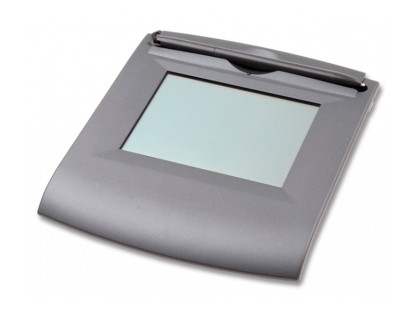
Reliable and accurate electronic signature tablet, equipped with a 5″ monochrome TFT LCD display, 640 × 480 resolution, and a high contrast ratio (600:1) for clear visibility.
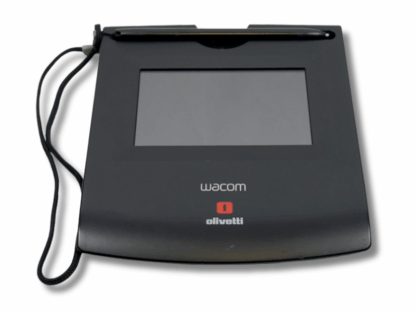
Electronic signature tablet designed for professional environments. It features a 5-inch colour LCD display, providing a clear and sharp view of signatures and customised messages.