


Understanding the parts of a computer is very useful when you want to upgrade your equipment, repair a fault or simply know what you are buying.
If your PC is running slowly, the most noticeable improvements often come from upgrading the RAM or replacing a mechanical hard drive with an SSD. For gaming, video editing or 3D design work, the graphics card and power supply are also key components.
Before buying any component, always check compatibility with your system: RAM type, case space, available connections, power supply wattage and motherboard form factor.
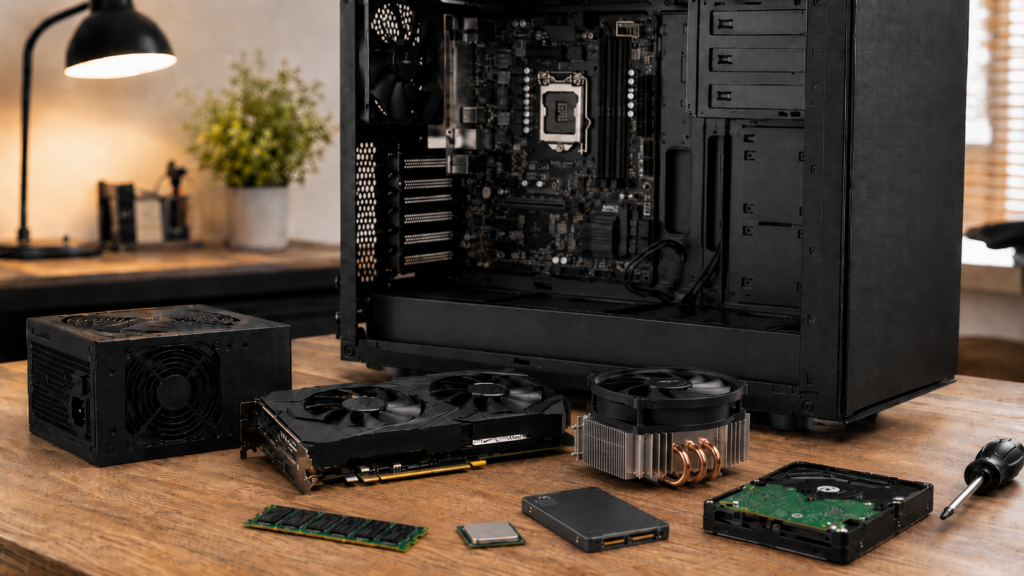
What are the main components of a PC?
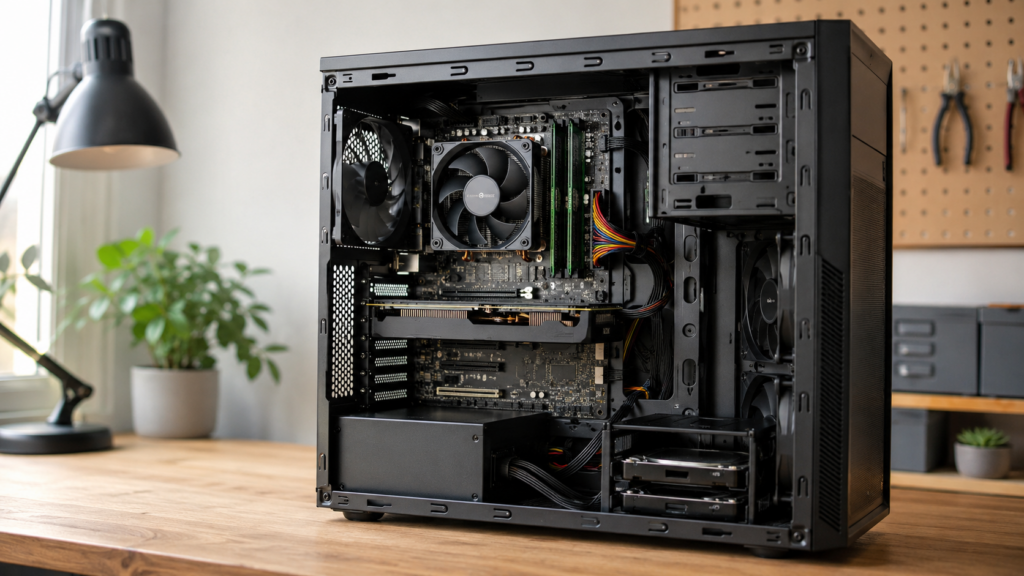
The components of a PC are the parts that allow the computer to function. Some are located inside the tower or case, while others are connected externally.
The most important internal components are:
| Component | Main function |
|---|---|
| PC case | Structure where the components are installed |
| Motherboard | Connects all components |
| Processor or CPU | Carries out the computer’s tasks |
| RAM memory | Allows you to work with several programmes at the same time |
| Hard drive or SSD | Stores the operating system, programmes and files |
| Graphics card | Processes images, video, games and 3D design |
| Power supply unit (PSU) | Provides stable power to the system |
| Cooling system | Keeps temperatures under control |
There are also peripherals, such as the monitor, keyboard, mouse or speakers. They are not internal PC components, but they have a major impact on the user experience.
In a desktop PC, upgrading components is usually easier than in a laptop or an all-in-one, where many components are integrated and internal space is more limited.
PC case
The PC case is the structure where the computer’s internal components are installed and protected. It is what we commonly call the “tower”.
Although it may seem like a secondary component, the case affects several important aspects:
- The available space for installing components.
- The system’s airflow.
- Compatibility with motherboards, graphics cards and power supplies.
- The ease of upgrading or cleaning the computer.
- Internal cable management.
Changing the case can make sense if you need more space, want to improve cooling, are going to install a large graphics card or are looking for a more refined aesthetic.
Motherboard
The motherboard is the component that connects the processor, RAM, storage, graphics card, power supply and other internal expansion cards.
It acts as a common platform where all PC components communicate with each other. That is why compatibility is essential.
Before changing or upgrading a component, it is worth checking:
- What type of processor the motherboard supports.
- What type of RAM it uses.
- How many RAM slots it has.
- What storage connections it offers.
- Whether it has slots for a graphics card or controller cards.
- What ports it includes for peripherals and accessories.
The motherboard also limits upgrade possibilities. For example, if it does not have free slots or does not support a certain type of memory, you will not be able to install just any component.
Processor or CPU
The processor, also known as the CPU, is one of the most important components of a PC. It is responsible for executing instructions and coordinating many of the tasks performed by the computer.
It affects overall performance, especially when using demanding programmes or working with multiple tasks at the same time.
For simple uses, such as browsing the internet, writing documents or checking emails, you do not always need a very powerful processor. However, for more demanding tasks, such as video editing, design, programming, gaming or professional work, the CPU can make a significant difference.
It makes sense to consider a processor upgrade when:
- The system struggles with current programmes.
- You work with demanding tasks.
- The PC takes too long to respond even with sufficient RAM and an SSD.
- The software you use requires more processing power.
However, changing the CPU is not always straightforward. You need to check whether the motherboard is compatible and whether the power supply and cooling system are suitable.
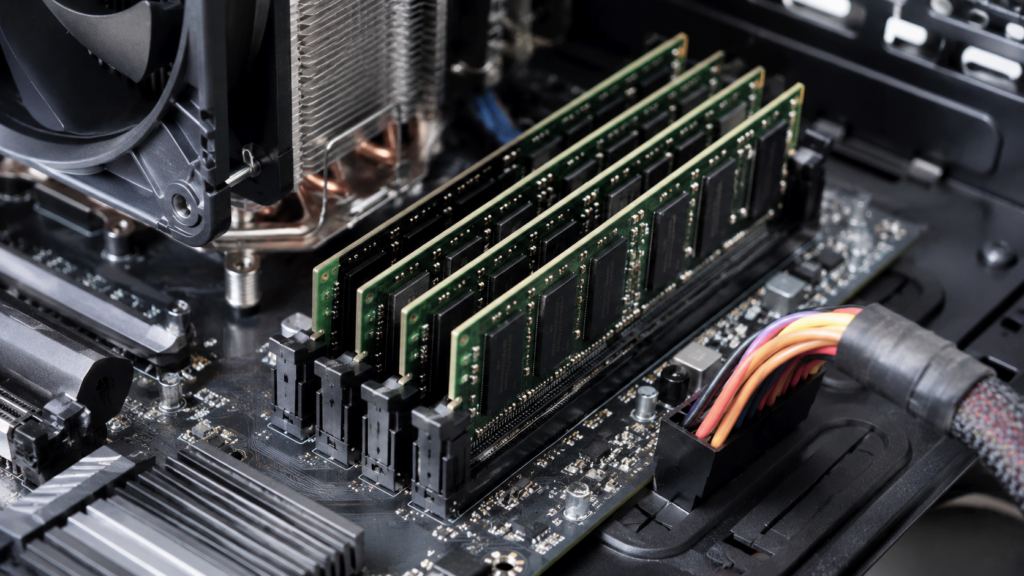
RAM memory
RAM allows the computer to work with data quickly while it is switched on. It is essential for opening programmes, keeping browser tabs open, using editing applications or gaming smoothly.
A simple way to understand it: storage keeps your files permanently, while RAM is the temporary space your PC uses to work at that moment.
When there is not enough RAM, the computer can become slow, especially if you have many applications open.
It may make sense to upgrade the RAM if:
- The PC slows down with many browser tabs open.
- You use design, editing or calculation programmes.
- You play modern games.
- The system takes a long time to switch between applications.
- You want to extend the lifespan of an older computer.
It is also important to bear in mind that not all RAM modules fit all systems. There are different types, such as DDR3, DDR4 or DDR5, and they are not all compatible with each other. In addition, desktop computers usually use DIMM modules, while many laptops and compact systems use SO-DIMM memory, which is smaller.
To improve everyday performance and work more efficiently with several programmes open, you can explore different RAM memory options at Zoca and choose an upgrade compatible with your PC.
Hard drive and SSD
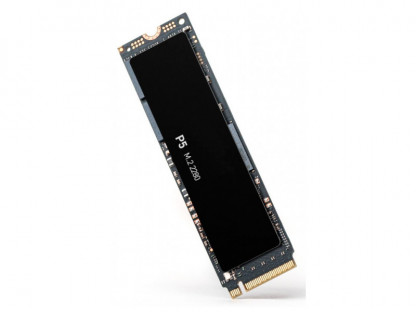
The hard drive or SSD is the component where the operating system, programmes, documents, photos, videos and games are stored.
The main difference is speed.
A HDD hard drive usually offers more storage capacity for a lower price, but it is slower. An SSD, on the other hand, allows the computer to boot faster, open programmes more quickly and provide a more responsive everyday experience.
| Storage type | Advantages | When to choose it |
|---|---|---|
| HDD | More capacity at a lower cost | Storing files, backups, photos or videos |
| SSD | Much faster for everyday use | Operating system, programmes and games |
| HDD + SSD | Balance between speed and capacity | Systems that need performance and storage space |
Replacing a mechanical hard drive with an SSD is usually one of the most noticeable upgrades in an older PC.
You may want to upgrade or replace your storage if:
- You are running out of space.
- The system takes a long time to boot.
- Programmes open very slowly.
- You need to store games, videos or large projects.
- You want to improve the computer’s overall responsiveness.
If your system takes a long time to boot, programmes open slowly or you need more storage space for files, you can take a look at the hard drives and SSDs at Zoca and choose the option that best suits your needs.
Graphics card
The graphics card, or GPU, is responsible for processing the image you see on the screen. It is especially important for gaming, video editing, 3D design, animation, rendering and the use of high-resolution monitors.
There are two main types:
- Integrated graphics: built into the processor or motherboard. It is sufficient for basic tasks, browsing, office work and video playback.
- Dedicated graphics: a separate graphics card with more power. It is used for gaming, design, editing and demanding graphics tasks.
Upgrading the graphics card may make sense if:
- You want to play with better quality or smoother performance.
- You edit videos.
- You work with 3D design.
- You use demanding graphics programmes.
- You have a high-resolution monitor.
- Your current graphics card is no longer powerful enough.
Before buying a graphics card, check compatibility with the case, motherboard and power supply. Some graphics cards require more space, more power and specific connectors.
If you want to improve performance in gaming, video editing or design, check the graphics cards category at Zoca and see which option best fits your system.
Power supply unit
The power supply unit converts electrical power and distributes it to all PC components. It is a key component for the system’s stability and safety.
A poor-quality or insufficient power supply can cause shutdowns, restarts, boot failures or issues when installing higher-power components.
It is worth checking or replacing the power supply when:
- You are going to install a more powerful graphics card.
- The PC shuts down by itself.
- You have upgraded several components.
- The current power supply does not have the necessary connectors.
- The system has stability issues.
When choosing a power supply, pay attention to three main aspects:
- Power: it must be sufficient to supply power to the entire system.
- Efficiency: helps reduce energy losses and heat
- Connectors: they must be compatible with the motherboard, graphics card, drives and other components.
Quick checklist to know if you need to replace the power supply
| Question | If the answer is yes… |
|---|---|
| Are you going to install a more powerful dedicated graphics card? | Check the power rating and connectors |
| Does the PC shut down or restart without any clear reason? | The power supply could be the cause. |
| Are you missing connectors for new components? | You may need a different power supply. |
| Is the power supply very old? | It is worth checking its condition. |
| Have you upgraded several components? | Check the system’s total power consumption. |
If you are considering replacing or upgrading this component, you can check the power supplies at Zoca and choose an option that suits your system’s needs.
Controller cards
Controller cards allow you to add features or connections that the computer does not have by default.
They are usually installed on the motherboard and can be used to expand ports or improve certain system capabilities.
Some common examples are:
- Adding more USB ports.
- Adding additional SATA connections.
- Improving network connectivity.
- Adding or improving sound.
- Adapting older systems to new needs.
- Supporting specific professional uses.
They are especially useful when a PC still works well but is limited in terms of connections or upgrades.
To expand connections without replacing your computer, you can take a look at the controller cards at Zoca, designed to add specific ports or features depending on your system’s needs.
Other important PC components
In addition to the main components, there are other elements that also affect performance and the user experience.
Cooling system
The cooling system keeps components at suitable temperatures. It can include fans, heatsinks or liquid cooling.
Good cooling helps the PC operate reliably and prevents heat from affecting performance.
It is important to check it if:
- The computer is very noisy.
- The system gets too hot.
- It shuts down during demanding tasks.
- You have installed more powerful components.
Sound card and network card
Many computers already include integrated sound and networking on the motherboard. For most users, this is sufficient.
However, a dedicated card can be useful in specific cases:
- Music production.
- Audio recording.
- More advanced networking needs.
- Improved connectivity on older systems.
- Specific professional use.
Peripherals
Peripherals are not internal components, but they have a major impact on how you use your computer.
The most common ones are:
- Monitor.
- Keyboard.
- Mouse.
- Speakers.
- Webcam.
- Printer.
- Headphones.
A good monitor, for example, can be important for design or extended periods of work. A comfortable keyboard and mouse can also improve the everyday experience.
Recommended products

nVidia Quadro M4000 8 GB graphics card
1664 CUDA cores – 8 GB GDDR5 – 256-bit – Up to 192 GB/s – 4x DisplayPort.
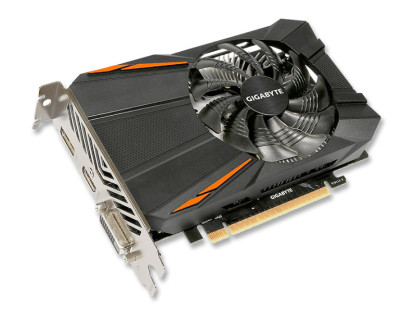
GeForce GTX 1050 4GB Graphics Card
640 CUDA cores – 4 GB GDDR5 – 128-bit – Up to 112 GB/s – HDMI 2.0 + DisplayPort 1.4 + DVI-D.
Which component should you upgrade based on how you use your computer?
Not all users need to upgrade the same components. The right upgrade depends on how you actually use your system.
For office work and browsing
If you use your PC for the internet, email, documents, video calls and simple tasks, it is usually best to prioritise:
- SSD.
- RAM memory.
- System cleaning and maintenance.
For this type of use, a dedicated graphics card is not usually necessary.
For gaming
In gaming, the priority is usually the graphics card, although it is not the only important component.
It is also worth checking:
- RAM memory.
- SSD for installing games and reducing loading times.
- Suitable power supply.
- Case airflow.
- A processor powerful enough to match the graphics card.
Upgrading just one component without checking the whole system can create bottlenecks.
For design, editing or professional work
In design, video editing, advanced photography, architecture, animation or professional work, the priority depends on the software.
In general, the following are usually important:
- RAM memory.
- Fast SSD.
- Powerful processor.
- Dedicated graphics card if the software makes use of it.
- Good cooling system.
Before buying, check the requirements of the software you use.
To extend the lifespan of an older PC
On an older PC, the most common upgrades are usually an SSD and RAM.
Replacing a mechanical hard drive with an SSD can transform the everyday experience. Upgrading RAM also helps if the system struggles with several tasks open at the same time.
Before buying, always check:
- Compatible RAM type.
- Available storage connections.
- Internal space.
- Power supply condition.
- Motherboard limitations.
| PC usage | Priority component | Reason |
|---|---|---|
| Office work and browsing | SSD and RAM | Improve boot times, responsiveness and multitasking. |
| Gaming | Graphics card, RAM, SSD and power supply. | Better gaming performance and stability. |
| Design and editing | RAM, SSD, CPU and GPU | Improves performance when working with demanding files and software. |
| Older PC | SSD and RAM | They are usually the most noticeable upgrades. |
| Lack of connections. | Controller card. | Adds ports or features. |
How to choose compatible components for your PC
Compatibility is one of the most important factors when buying components for a PC.
Before choosing a component, check:
- Motherboard: determines which RAM, processor, storage and expansion cards you can install.
- Case size: some graphics cards, power supplies or coolers may not fit.
- Power supply wattage: it must be sufficient to power all components.
- RAM type: not all memory modules are compatible with every motherboard.
- Storage type: check the available connections and drive format.
- Connectors: make sure the power supply and motherboard have the required ones.
- Internal space: important for large graphics cards or future upgrades.
Before buying, it is worth carefully checking these points. A RAM module, graphics card or power supply may be a good component, but it may not be suitable for your PC if it is not compatible with the motherboard, case or available connectors. You can explore different options for refurbished components at Zoca.
If you have any doubts, the best option is to check your equipment’s technical specifications or contact Zoca before buying. This way, you can avoid choosing a component that is not compatible with your PC.